For teams spread across sites
Staff rotas: each person on the schedule that fits
By shifts, by tasks or standard week. Choose the mode for each site and each person, and build the week in the dashboard, from Excel or by asking the AI.
An office that repeats its week, a site that changes shifts every Monday and a team that moves from job to job are not organised the same way. CheckBiz360 lets each branch and each person choose their mode, and what you plan is what everyone sees in the app and clocks in against.
For companies with several sites, changing shifts or work split into jobs.
The rota is made in one place and lived in another.
As soon as the team is spread across several sites, the rota stops being a sheet: it is an Excel file someone rebuilds every week, a PDF sent over WhatsApp and a last-minute change that never reaches the person it was meant for.
It gets done twice
Once in the spreadsheet where it is thought through, and again person by person where it is applied. And once more when someone takes a day off.
Nobody knows which one is right
Monday’s version, Tuesday’s correction and the photo someone saved. Everyone looks at their own.
One schedule does not fit everyone
Admin repeats the week, the site rotates shifts and whoever does visits has a different day every day. Forcing them into one model is where the chaos starts.
The right rota is the one each person has on their phone. And clocks in against.
Three ways to organise the schedule. Each where it pays off.
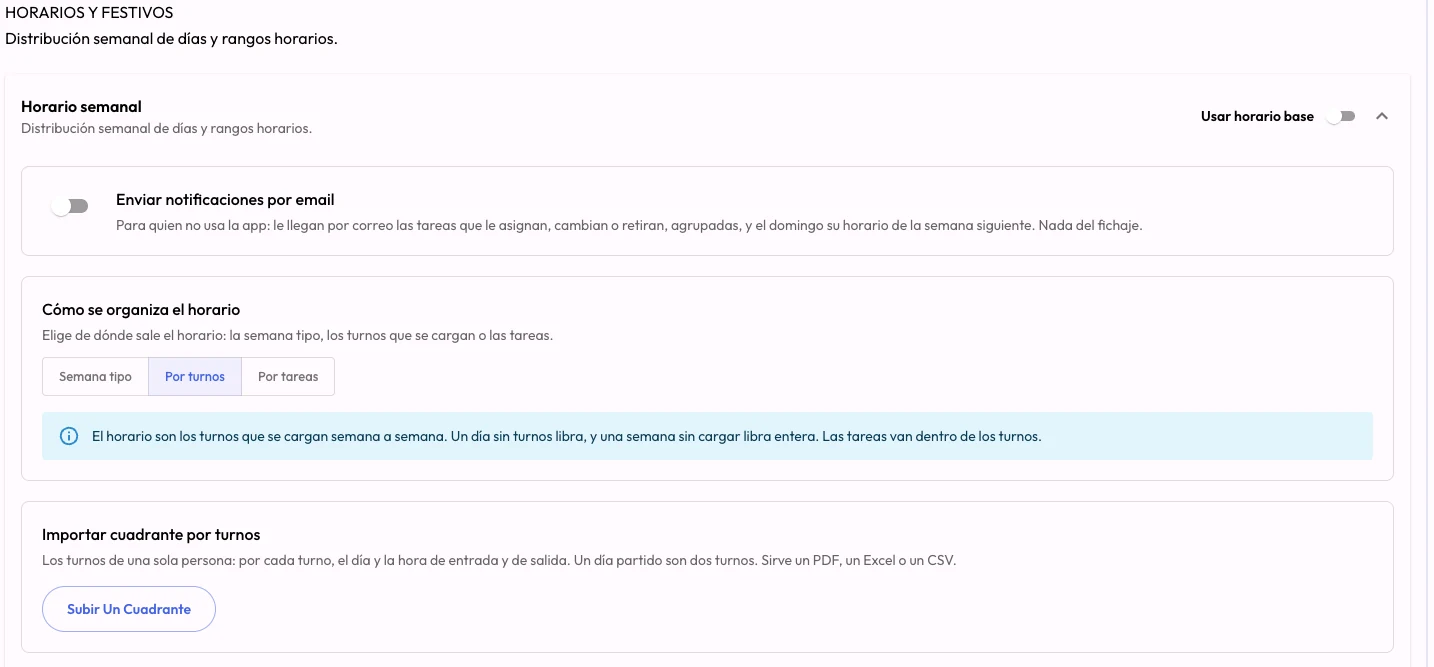
Each person has a mode, and the mode is the only source of their schedule. It is set on the branch or on the person’s profile, and each mode shows only what is its own.
- 01
By shifts
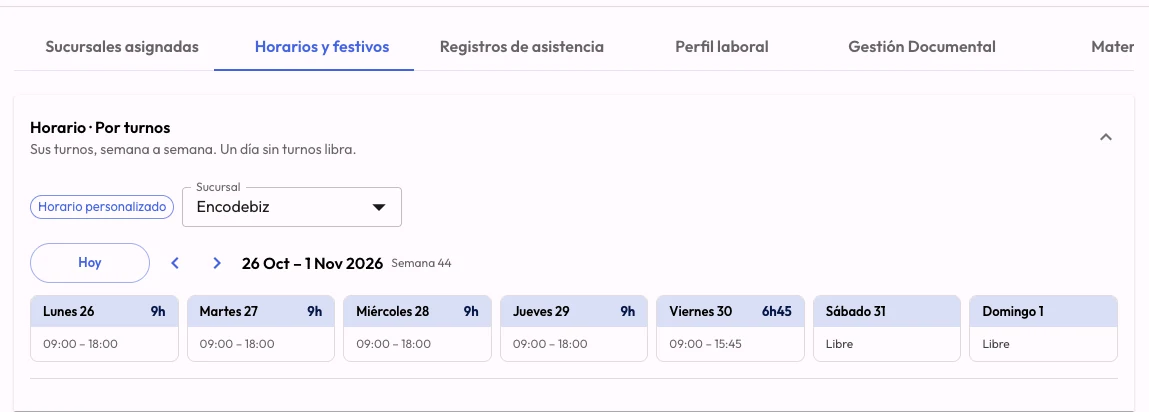
The schedule is the shifts you load, week by week.
Each day carries its shifts, loaded in the roster, copied from the previous week or uploaded from Excel. A day with no shifts is off, and a week left empty is off entirely: if it is not on the rota, nobody works. The day’s tasks sit inside the shift, and loading shifts never touches them.
Works best for- Home care services
- Cleaning and maintenance across sites
- Hospitality, retail and security
- Anywhere every week is different
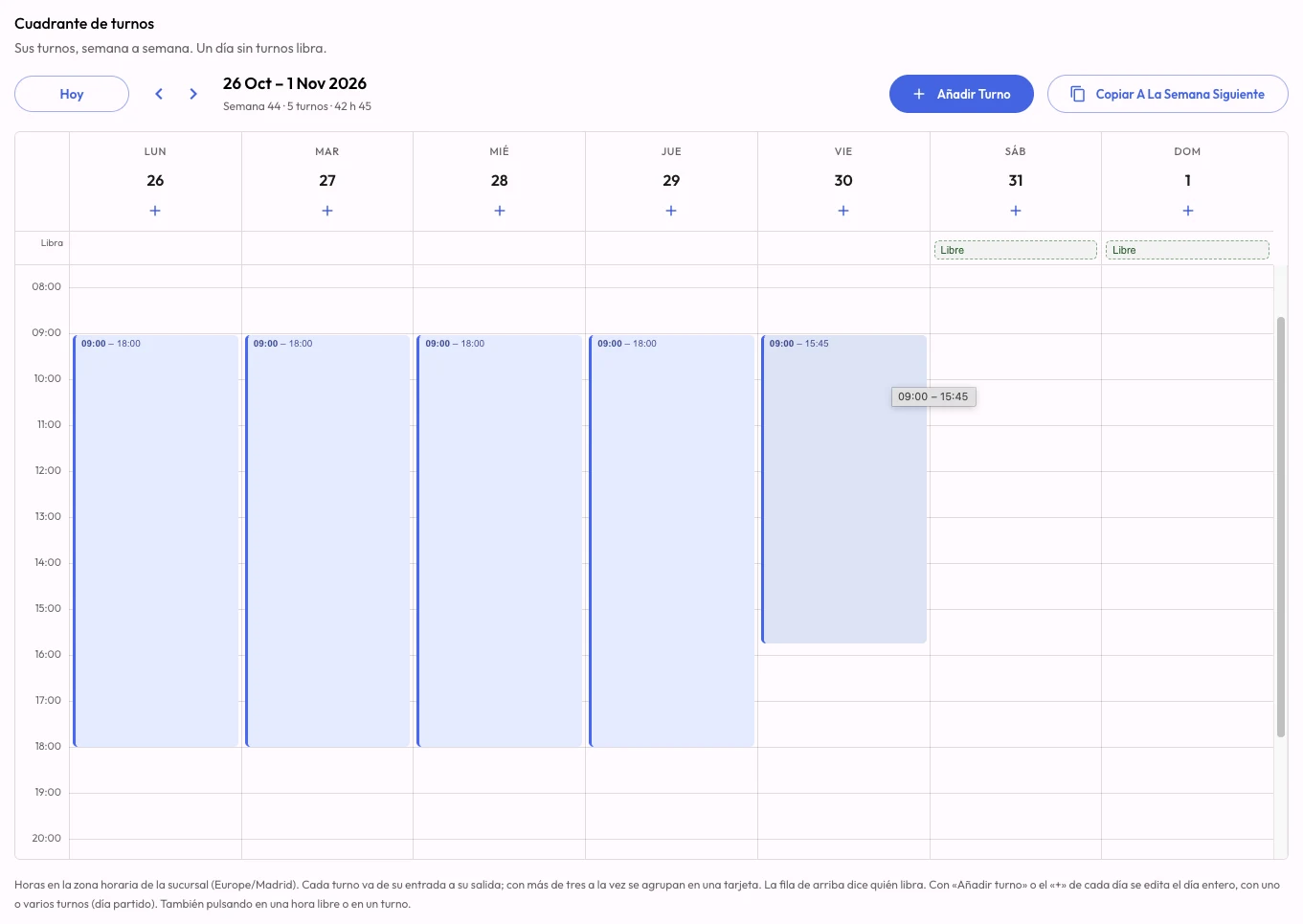
One week of the shift roster: each day with its shifts, days off marked at the top and «Copy to next week» to build the month. Real dashboard screenshot. - 02
By tasks
Each task is a shift: the day is its tasks.
Each day’s working time is set by its jobs, each with its own time and address. It belongs to the person, not the branch, and their whole week can be uploaded from the schedule their own software already prints.
Works best for- Home care and visits
- Maintenance and installation rounds
- Set-ups and jobs at the customer’s site
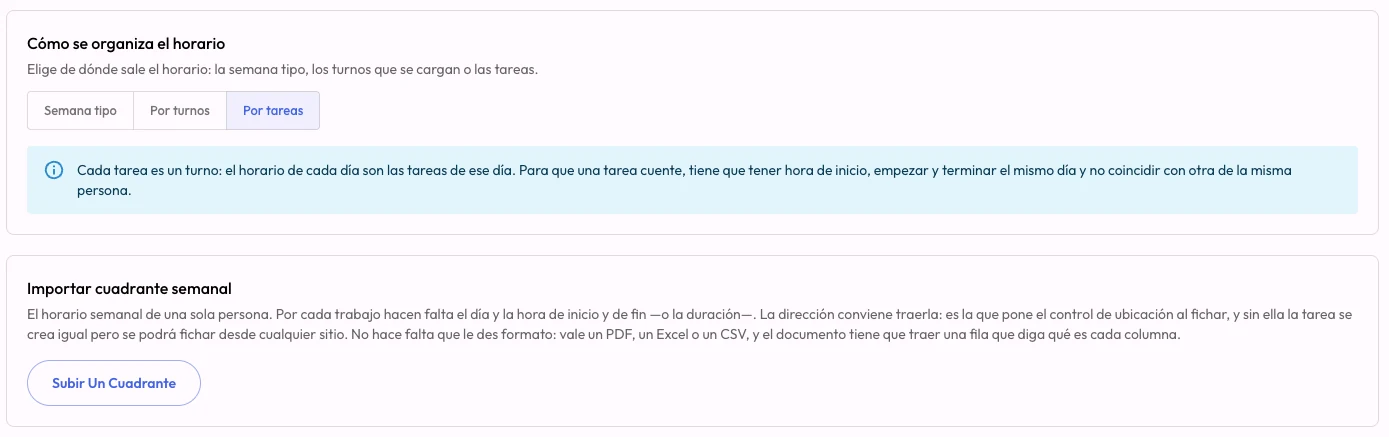
«By tasks»: every task with a start time, on the same day and not overlapping, counts as a shift. Real dashboard screenshot. - 03
Standard week
The same week, every week.
Set it once —one or several shifts per day, with breaks— and it repeats itself. It can apply to the whole company, a branch or a person, and be saved as a template to apply to other branches.
Works best for- Offices and administration
- Shops and sites with fixed opening hours
- Core staff who do not rotate
And they mix on the same site
The usual set-up is «By shifts» on the branch and «Standard week» for whoever has fixed hours, such as admin. The mode is inherited —company, branch and person— and the closest one wins.
Minutes to build, not the whole Monday morning.
Three routes to the same rota. Each person gets their week on their phone as soon as it is saved.
In the dashboard
The branch’s shift roster shows the whole team for the week. «Add shift», a split day with two shifts, and «Copy to next week» to build a month that looks alike and adjust what changes.
From Excel
One template per branch and week, with a tab per person: depending on their mode, it loads shifts or tasks. Before saving, the platform shows what it will do with each person and flags what is worth checking. Correcting it means uploading again, with nothing duplicated.
By asking the AI
«Build Norte’s week like last week, but Marta is off on Thursday.» The operations manager in Claude or ChatGPT prepares the proposal person by person and saves nothing until you say yes.
For a single person, the document their management software prints also works, as PDF, Excel or CSV: the platform shows what it understood from each column before going on.
Ask Claude or ChatGPT. It gets done in CheckBiz360.
Building the week, onboarding new people, knowing who hasn’t clocked in this morning and who can cover them: the work that eats the afternoons of whoever runs the operation. Connect CheckBiz360 to your assistant and ask in your own words. It prepares everything with your permissions, shows you what it’s about to do and saves nothing until you say yes.
Things you can ask
- Build Norte’s week like last week, but Marta is off on Thursday.
- Upload this rota: it is a photo of next week’s paper.
- Lucía has not clocked in. Who can cover her ten o’clock shift?
- Who is available on Saturday at Centro Sur?
- You
Lucía hasn’t clocked in and she has the 10:00 service at North Site. Who can cover her?
- Assistant
For today’s 10:00 to 12:00 service at North Site:
- Free
- Marta R. · shift 8:00 to 15:00, nothing scheduled at that time.
- With caveats
- Pablo S. · has another service until 10:30.
- Unavailable
- Andrés L. · on holiday.
Who should I assign it to?
- You
Marta.
- Assistant
10:00 to 12:00 service at North Site. Before: Lucía G. After: Marta R. Shall I apply it?
- You
Yes.
- Assistant
Done. Marta already has the service on her phone.
Answers come from your company’s data in CheckBiz360. Names and sites are made up for the example.
Connect
Once, with a single address that works for every company you manage. Two minutes.
Ask
In Claude or ChatGPT, in your own words: “how are we doing today?”, “build”, “change”, “onboard”, “who…?”.
Review and confirm
It shows you what it’s about to do, with the before and after. It only applies it when you say yes.
What protects you
- It acts with your permissions, checked on every request: nothing you couldn’t do yourself in the dashboard.
- Nothing is saved without your confirmation. Close the conversation without a yes and nothing happens.
- You can see which assistants are connected to your company and disconnect them from Tools instantly.
For owners and administrators with two-factor authentication enabled. You need your own Claude or ChatGPT account; a company account is advisable, because your operation’s data travels to that service.
What you plan is what each person sees. And clocks in against.
The rota does not stay in the dashboard. Each person has their week, and the platform uses it for everything else.
Their week in the app
Their shifts, or their jobs with each address, and the clock-in and clock-out reminder.
Clocking in against their shift
With the usual gesture. A day with no shift is off, and a public holiday or leave blocks clocking in even if a shift is loaded.
By email, for those not using the phone
With the email notifications switch, their schedule for the following week arrives on Sunday at 18:00. If nothing has changed, it is not sent again.
Leave requested from the app
In «My calendar» they see their month and request holidays or leave. Requests are approved in the dashboard and those days become days off in their schedule.
For any company with a team spread across sites.
Cleaning and maintenance
«By shifts» on each site, the week copied and adjusted, and admin on a standard week.
Home care
«By tasks»: each visit is a shift, with its time and address, uploaded from the coordinators’ rota.
Retail, hospitality and security
«By shifts» for each week’s rotation, with split days and days off in plain sight.
Construction, events and services
Crews per site on «By shifts», and set-ups or jobs with an address on «By tasks».
Frequently asked questions
Can I use different modes in the same branch?
Yes. The mode is set on the company, the branch or the person, and the closest one wins. The usual set-up is the branch on «By shifts» and whoever has fixed hours, such as admin, on «Standard week» from their profile. «By tasks» is always chosen person by person.
Does it generate shift rotations automatically?
No. The rotation is not calculated for you: you build one week, copy it to the next with one click and adjust what changes, or upload each week from Excel. No schedule needs changing when moving from one week to the next.
What happens if I do not load a week?
On «By shifts» that person is off the whole week and cannot clock in on those days: there is no standard week behind it. The dashboard flags in red who has nothing loaded in the week you are looking at. On «Standard week» this does not happen, because the week repeats itself.
Does loading shifts change my tasks?
No. Loading shifts never creates, moves or deletes a task: the day’s tasks sit inside the shift. Only on «By tasks» is the rota made of tasks, and there uploading the week replaces the ones not yet started.
Does the availability board assign people to a site?
No. It shows who is available each day according to their schedule, public holidays and absences, and who is missing and why. A person linked to two sites counts in both: deciding where they go is still up to whoever coordinates.
Who can load the rota?
The company owner and administrators, and the supervisors of each person’s branch. Past days cannot be changed; if a clock-in needs correcting, it is done from the clock-in review.
Bring your rota. We will build it in front of you.
Tell us how your team is spread and how you build the week today. In the demo we load your rota into a demo company, in the mode that fits each person.